
How to Use Blazor for Building Interactive Web Applications in .NET
For years, the division between backend and frontend development in the .NET ecosystem was stark. You built robust, type safe logic in C# on the server, but the moment you moved to the client side, you were forced to context switch to JavaScript or TypeScript. While frameworks like React and Angular are powerful, they require a separate toolchain and a different mental model.
Blazor changes this dynamic entirely. It allows developers to build interactive web UIs using C# instead of JavaScript. By leveraging WebAssembly, you can run .NET code directly in the browser, enabling full stack development with a shared codebase, consistent dependency injection, and the strong typing you rely on.
In this article, we will examine the architectural models of Blazor, explore how to structure components for interactivity, and discuss how to integrate this framework into your existing .NET ecosystem for scalable, high-performance results.
Understanding the Blazor Hosting Models
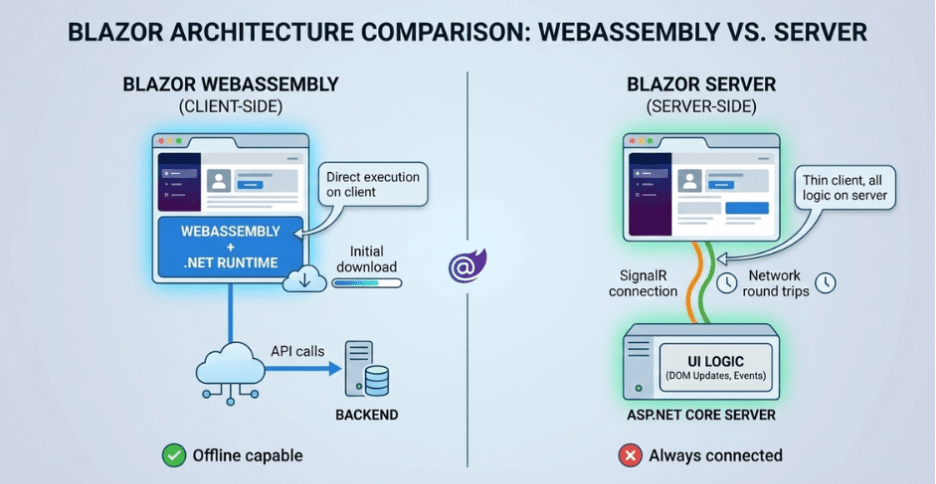
Before writing code, it is crucial to choose the right hosting model. Blazor offers two primary architectures, each with distinct tradeoffs regarding performance, latency, and scalability.
Blazor WebAssembly (WASM)
In this model, your application, its dependencies, and the .NET runtime are downloaded to the client’s browser. The app runs entirely on the client machine using WebAssembly, an open web standard.
- Performance Profile: The initial load time can be slower because the runtime must be downloaded. However, once loaded, the app is incredibly fast and responsive as it runs directly on the user’s hardware.
- Use Case: Ideal for high performance applications that require offline capabilities or need to offload processing power from the server to the client. It effectively turns the browser into a rich client.
Blazor Server
Here, the application executes the server from within an ASP.NET Core app. UI updates, event handling, and JavaScript calls are handled over a SignalR connection.
- Performance Profile: The initial load is significantly faster than WASM because the download size is small. However, every user interaction requires a network round trip, which can introduce latency if the connection is poor.
- Use Case: Best for internal line of business applications, thin clients, or scenarios where you need to keep your code interactions server side for security reasons.
Core Concepts: The Component Model
Blazor is based on a robust component model. A component is a self-contained chunk of user interface (UI), such as a page, dialog, or data entry form. These are defined in .razor files, which seamlessly blend HTML markup with C# code.
Anatomy of a Razor Component
The power of Blazor lies in its ability to handle logic and presentation in a single file. Here is a breakdown of how a basic interactive component functions:
- Directives: At the top of the file, you use @page to define routing and @inject to bring in services (like HttpClient for API calls).
- Markup: Standard HTML defines the visual structure.
- The @code Block: This is where your C# logic lives. You define properties to hold state and methods to handle events.
When the state of the component changes (for example, a user clicks a button that updates a counter), Blazor calculates the difference in the render tree and updates the browser’s DOM efficiently. This eliminates the need for manual DOM manipulation, reducing the complexity of your frontend code.
Data Binding and Event Handling
Creating interactive applications requires a seamless flow of data between your logic and your UI. Blazor simplifies this through sophisticated data binding techniques.
One way and Two-way Binding
- One way of binding: You can render the value of a C# property directly into the HTML. If the property changes in the code, the UI updates automatically.
- Two-way binding: Using the @bind directive, you can sync an HTML input element with a C# property. If the user types in a text box, the variable updates; if the code updates the variable, the text box reflects the change.
This synchronization is critical for building dynamic forms and interactive dashboards without writing boilerplate event listeners.
Event Handling
Handling DOM events like onclick, onchange, or onmousemove is handled with standard C# methods. You do not need to register JavaScript for event listeners. For instance, <button @onclick=”ProcessData”> will execute the ProcessData method in your C# block when clicked. This integration allows you to trigger complex backend logic, such as database updates or API calls, directly from a UI interaction.
Interoperability: Integrating with JavaScript
A common objection to adopting Blazor is the fear of losing access to the vast ecosystem of JavaScript libraries. However, Blazor was designed with this reality in mind.
Through JS Interop, Blazor can invoke JavaScript functions from C# methods, and vice versa. This means you can:
- Utilize existing JavaScript libraries (like charting tools or map of APIs).
- Access to browser APIs that might not yet have a C# wrapper (such as local storage or geolocation).
This capability ensures that adopting Blazor does not mean abandoning your existing frontend assets or the broader web ecosystem. It offers a migration path where you can slowly replace JS logic with C# or keep them running side by side.
State Management and Scalability
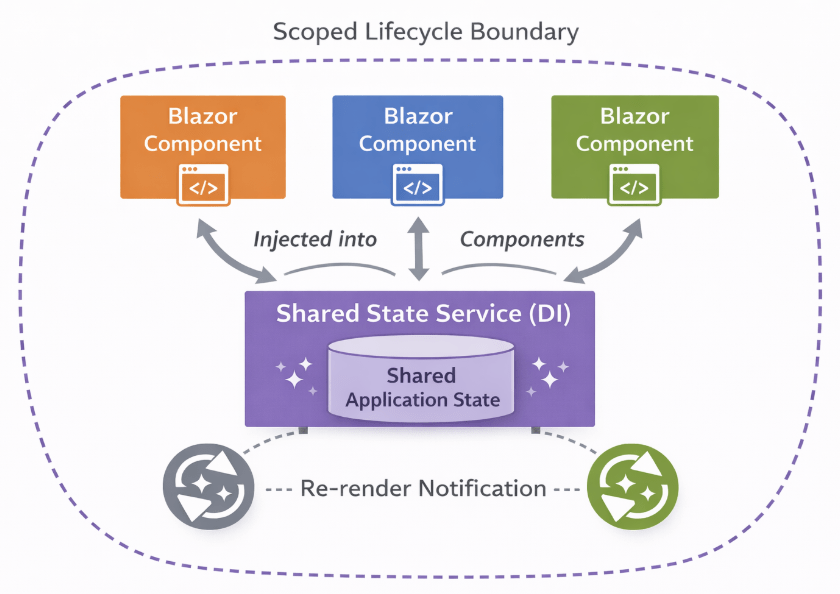
For enterprise grade applications, managing the state across different components is a significant challenge. In complex scenarios where multiple components need access to the same data (e.g., a shopping cart or user profile), passing parameters down the component tree becomes inefficient.
Dependency Injection (DI)
Blazor is built on top of ASP.NET Core, meaning it has first class support for Dependency Injection. You can create a “State Service” for a C# class that holds your application’s data and register it as a Scoped or Singleton service in the Program.cs file.
You can then inject this service into any component that needs it. When one component updates the state in the service, you can trigger events to notify other components to render. This pattern promotes a clean separation of concerns and makes your application more testable and scalable.
Optimizing for Performance
While Blazor WebAssembly is powerful, shipping a .NET runtime to the browser has a cost. To ensure your application meets the performance expectations of modern users, consider these optimization strategies:
- Lazy Loading: Do not force the user to download the entire application at once. Configure your router to lazy load assemblies only when the user navigates to specific routes.
- Ahead of Time (AOT) Compilation: Introduced in later versions of .NET, AOT compiles your C# code directly into WebAssembly machine code. This significantly improves runtime performance for CPU intensive tasks, though it does increase the download size slightly.
- Virtualization: If you are rendering large lists of data (like a grid with thousands of rows), use Blazor’s virtualization features. This ensures that only the items currently visible in the viewport are rendered in the DOM, drastically reducing memory usage and rendering time.
Next Steps for Your .NET Projects
Blazor represents a mature, robust option for modern web development. It allows teams to consolidate their technology stack, improve developer productivity through type safety, and share logic between server and client.
Whether you are building a high-performance internal dashboard or a customer facing public application, the ability to write full stack .NET code provides a significant competitive advantage.
To start leveraging these capabilities, we recommend setting up a pilot project using the Blazor WebAssembly template in Visual Studio. Experiment with building a shared class library for your data models to see firsthand how code sharing can streamline your development workflow.

 Print on Demand Cloud
Leave a comment