
How to Integrate Machine Learning Models into .NET Applications
Integrating machine learning (ML) models into .NET applications bridges the gap between sophisticated data science and robust enterprise software. For years, the ML ecosystem has been heavily dominated by Python, leaving .NET developers to rely on complex interop solutions or microservices to leverage AI capabilities. However, with the evolution of ML.NET and ONNX (Open Neural Network Exchange), the landscape has shifted significantly.
In this article, you will learn how to seamlessly integrate pre-trained models into your C# applications, explore the best tools for the job, and review practical code examples to get you started. Whether you are building a recommendation engine, a fraud detection system, or an image classifier, mastering this integration is key to building scalable AI solutions within the Microsoft ecosystem.
Why Integrate ML directly into .NET?
Historically, .NET teams often deployed Python-based Flask or FastAPI services to host models, communicating via REST APIs. While effective, this architecture introduces latency, serialization overhead, and operational complexity. By running models directly within the .NET process, you achieve:
- High Performance: In process execution eliminates network latency and serialization costs, enabling real-time data insights.
- Simplified Deployment: You ship a single application rather than managing separate containers for the application logic and the inference engine.
- Type Safety: Leveraging C#’s strong typing ensures data integrity during the pre-processing and post-processing stages.
Understanding the Tools: ML.NET and ONNX
Before diving into code, it is essential to understand the primary technologies that facilitate this integration.
ML.NET
ML.NET is an open source, cross platform machine learning framework designed specifically for .NET developers. It allows you to train custom models or load pre-trained ones directly in C# or F#. It is built for performance and can handle large scale data processing pipelines efficiently.
ONNX (Open Neural Network Exchange)
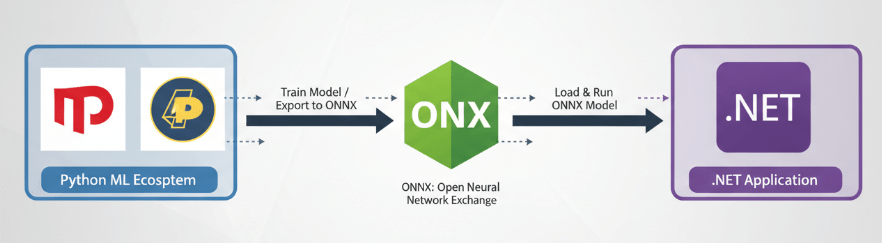
ONNX is an open format built to represent machine learning models. It defines a common set of operators in the building blocks of machine learning and deep learning models, and a common file format to enable AI developers to use models with a variety of frameworks, tools, runtimes, and compilers.
By exporting a model from PyTorch or TensorFlow to ONNX, you can load it into ML.NET (or use the ONNX Runtime directly) to run inference within your .NET application.
Step by Step Guide: Integrating a Pre-Trained Model
Let’s walk through the process of integrating a standard machine learning model. For this example, we will assume you have an ONNX model file (e.g., model.onnx) ready for deployment. This could be a regression model predicting housing prices or a classification model for customer churn.
Prerequisites
Ensure you have the following installed:
- .NET 6 SDK or later
- The Microsoft.ML and Microsoft.ML.OnnxTransformer NuGet packages
You can install these packages via the CLI:
dotnet add package Microsoft.ML
dotnet add package Microsoft.ML.OnnxTransformer
Step 1: Define Data Schemas
First, you need to define the input and output data classes. These classes map the data from your application to the tensor shapes expected by the ONNX model.
using Microsoft.ML.Data;
public class ModelInput
{
[ColumnName(“float_input”)] // Matches the input node name in ONNX
[VectorType(4)] // Specifies the size of the input vector
public float[] Features { get; set; }
}
public class ModelOutput
{
[ColumnName(“variable”)] // Matches the output node name in ONNX
public float[] Prediction { get; set; }
}
Note: You must check your ONNX model using a tool like Netron to verify the exact input and output node names (“float_input”, “variable”) and vector dimensions. Mismatched names or shapes are the most common cause of runtime errors.
Step 2: Load the Model and Create a Pipeline
Next, initialize the MLContext and define the transformation pipeline. ML.NET uses a pipeline approach, where data transformations and the model are chained together.
using Microsoft.ML;
var mlContext = new MLContext();
// Define the ONNX pipeline
var pipeline = mlContext.Transforms.ApplyOnnxModel(
modelFile: “model.onnx”,
outputColumnName: “variable”,
inputColumnName: “float_input”);
// Create an empty data view to fit the pipeline structure
var emptyData = mlContext.Data.LoadFromEnumerable(new List<ModelInput>());
// Fit the pipeline to create the transformer
var model = pipeline.Fit(emptyData);
Step 3: Create a Prediction Engine
To make predictions on single instances of data (useful for web APIs or real time processing), use the PredictionEngine. This utility is optimized for performance but is not thread safe, so be careful with its lifecycle in multi-threaded environments (like ASP.NET Core).
var predictionEngine = mlContext.Model.CreatePredictionEngine<ModelInput, ModelOutput>(model);
var inputData = new ModelInput
{
Features = new float[] { 1.2f, 3.5f, 2.1f, 0.8f }
};
var result = predictionEngine.Predict(inputData);
Console.WriteLine($”Predicted Value: {result.Prediction[0]}”);
Performance Optimization Tips
Integrating the model is just the first step. To ensure your application remains responsive and scalable, consider the following optimization strategies.
Use PredictionEnginePool in ASP.NET Core
Creating a PredictionEngine is expensive. In a web server environment, creating a new engine for every request will destroy performance. Instead, use the PredictionEnginePool service provided by the Microsoft.Extensions.ML package.
This service manages a thread safe pool of prediction engines, ensuring that your application can handle high throughput traffic without the overhead of object creation.
// In Program.cs
builder.Services.AddPredictionEnginePool<ModelInput, ModelOutput>()
.FromFile(modelName: “MyModel”, filePath: “model.onnx”, watchForChanges: true);
Hardware Acceleration
By default, ONNX Runtime executes on the CPU. For deep learning models, specifically those involving image processing or complex NLP tasks, CPU execution might be too slow.
You can enable GPU acceleration by installing the Microsoft.ML.OnnxRuntime.Gpu package. This allows the inference engine to offload computations to CUDA for compatible hardware, drastically reducing inference time for computing intensive models.
Handling Data Pre Processing
A common challenge in integration is replicating the data preprocessing steps used during training. If your Python data scientist scaled input features using standard scaling (subtracting mean, dividing variance), you must replicate this exactly in C#.
ML.NET offers a rich set of data transformation components to handle this within the pipeline:
- Normalization: Use mlContext.Transforms.NormalizeMeanVariance to scale features.
- One Hot Encoding: Use mlContext.Transforms.Categorical.OneHotEncoding for categorical variables.
- Imputation: Handle missing values with mlContext.Transforms.ReplaceMissingValues.
Integrating these steps directly into the ML.NET pipeline ensures that your preprocessing logic is versioned alongside your model, preventing “training serving skew.”
Integrating TensorFlow Models
While ONNX is the preferred interchange format, ML.NET also supports loading TensorFlow models directly via the Microsoft.ML.TensorFlow package. This is particularly useful if you are utilizing frozen TensorFlow graphs (.pb files) for tasks like image recognition (e.g., Inception or ResNet).
The process is like ONNX:
- Load the TensorFlow model using mlContext.Model.LoadTensorFlowModel.
- Inspect the graph to find input/output nodes.
- Pass the data through the session.
However, many developers find that converting TensorFlow models to ONNX provides a more unified experience, especially when dealing with varied model sources.
Best Practices for Production Deployment
Deploying AI models into production requires more than just functional code.
- Versioning: Models should be versioned just like code. Use a model registry or secure blob storage to manage model artifacts.
- Monitoring: Track inference latency and model drift. If the distribution of live data diverges from training data, your model’s accuracy will degrade.
- Fallback Mechanisms: AI models are probabilistic. Always implement error handling or fallback logic if the confidence score of a prediction is below a certain threshold.
Conclusion
Integrating machine learning models into .NET applications empowers developers to build intelligent, high-performance systems without leaving the ecosystem they know best. By utilizing ML.NET and ONNX, you can deploy scalable solutions that reduce operational complexity and improve real time decision making.
As you move forward, start by experimenting with a simple ONNX model export from Python and loading it into a .NET console app. Once you are comfortable with the pipeline, move to utilizing the PredictionEnginePool in a web API context to see the true power of scalable AI integration.

 Print on Demand Cloud
Leave a comment